


Develop games faster & easier in Visual Studio C++

Go beyond the limitations of Visual Studio with Visual Assist’s tailored features and support for Unreal Engine 4 & 5. Experience context-aware suggestions, snappy performance, and minimal loading time even in large game projects.

Turn your vision into reality with tailored support for Unreal Engine

Understand code easily

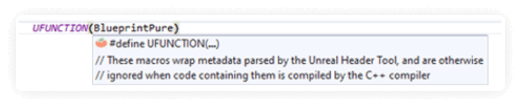
VA’s parser fully understands the context of Unreal extended code language and adjusts syntax highlighting and indentation accordingly. Annoying tabs, false errors, and unlabeled symbols when declaring UFUNCTIONS and UCLASS are now history.

Visual assist for Unreal Engine 4 understand code easily

Get Relevant Hints

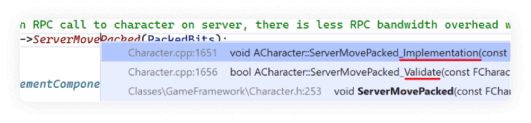
Type specifiers rapidly and with less switching to documentation for most U*Macros. If you modify the engine or add new specifiers, Visual Assist will detect and add suggestions for those as well.

Visual assist for Unreal Engine 4 - Get relevant hints

Works With Everything Else

Visual Assist reads U*Macro specifiers & we’ve used that to make our features smarter. Goto, Goto Related, Find References, Rename & Change Signature have all been extended to support implicit methods.

Visual assist for Unreal Engine 4 - Works with everything else

Go Beyond Limits

One of the limitations of Visual Studio’s default parser is it struggles in large solutions commonly associated with game development. With Visual Assist, you can code without all the incorrect red squiggles & save memory for other tasks.

Visual assist for Unreal Engine 4 - Go beyond limits

Context-Aware Dialogs and Documentation

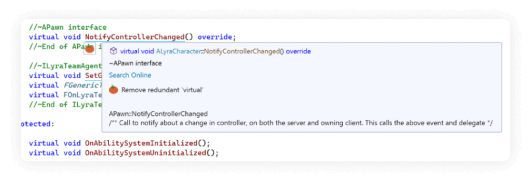
The documentation for Unreal Engine C++ is often in the code itself. Visual Assist understands Unreal’s extended code language so it will show comments and dialogs from base classes and U*Macro specifiers.

Visual assist for Unreal Engine 4 - Context-aware dialogs and documentation

Support for UE

Support for Unreal Engine
Visual Assist only supports Unreal Engine 4 and later.

Visual Assist includes features specific to development with Unreal Engine (UE), including support for UE keywords, preprocessor macros, and solution setup.

Enable support for UE in the Game Development option of Visual Assist.
Visual Assist Unreal Engine
Enabling support changes only the UI of Visual Assist. It does not affect the set of known symbols in a solution. As with non-UE solutions, known symbols are determined by #include directives and project include paths.

The first time you open a UE solution, whether or not support in the UI is enabled, Visual Assist parses a multitude of UE4 engine headers. After that, the symbols are available to all solutions that include them. If you cease all development with UE4, rebuild your symbol database to reclaim disk space and discard knowledge of all UE symbols.

When you select support for UE, you can choose the Always option to enable functionalities for all your projects, or Detect automatically allowing Visual Assist to detect them when you are working on a UE project.

There are different options to parse and index folders containing internal engine plugins from UE:
  • To not parse and index folders with UE plugins select the None option, this option significantly improves the parse time.
  • Parse and index folders containing UE plugins that are referenced in the project files or are enabled by default with the Referenced option, this option is selected by default and improves parse time.
  • Select All to include in the parse and index process folders containing UE internal engine plugins, even plugins your project does not use, this option slows down the parse time.
Parse and index folders containing UE generated header or source files by checking the Index generated code option. Otherwise, they will be skipped, improving parse time. By default, this option is unchecked.

The auto-format feature applies changes on pasted code if it contains one of the following UE macro definitions: UCLASS, USTRUCT, UPROPERTY, UFUNCTION, UENUM, UDELEGATE, GENERATED_UCLASS_BODY, GENERATED_USTRUCT_BODY, GENERATED_UINTERFACE_BODY, or GENERATED_IINTERFACE_BODY. By default, the Disable indent and format on pasted code option is checked. Otherwise, the auto-format feature will not apply changes to the pasted code.

Enable support for shader files such as .USF, .USH, .HLSL, and apply advanced syntax coloring and navigation features.

Also, Enable support for CUDA files such as .CU and .CUH, and apply advanced syntax coloring and navigation features.

Visual Assist features

Visual Assist has a number of general C++ features that are also useful for game development.

Open and search files (Shift + Alt + O)

Instead of opening the file explorer, VA lists all the projects in the solution in a single dialog menu. It is powered by a powerful context-aware search function so you can even find associated files by merely typing in a related file or string— an extremely useful feature for game projects.

Open and search files - Visual assist features

Support for UE

Support for Unreal Engine
Visual Assist only supports Unreal Engine 4 and later.

Visual Assist includes features specific to development with Unreal Engine (UE), including support for UE keywords, preprocessor macros, and solution setup.

Enable support for UE in the Game Development option of Visual Assist.
Visual Assist Unreal Engine
Enabling support changes only the UI of Visual Assist. It does not affect the set of known symbols in a solution. As with non-UE solutions, known symbols are determined by #include directives and project include paths.

The first time you open a UE solution, whether or not support in the UI is enabled, Visual Assist parses a multitude of UE4 engine headers. After that, the symbols are available to all solutions that include them. If you cease all development with UE4, rebuild your symbol database to reclaim disk space and discard knowledge of all UE symbols.

When you select support for UE, you can choose the Always option to enable functionalities for all your projects, or Detect automatically allowing Visual Assist to detect them when you are working on a UE project.

There are different options to parse and index folders containing internal engine plugins from UE:
  • To not parse and index folders with UE plugins select the None option, this option significantly improves the parse time.
  • Parse and index folders containing UE plugins that are referenced in the project files or are enabled by default with the Referenced option, this option is selected by default and improves parse time.
  • Select All to include in the parse and index process folders containing UE internal engine plugins, even plugins your project does not use, this option slows down the parse time.
Parse and index folders containing UE generated header or source files by checking the Index generated code option. Otherwise, they will be skipped, improving parse time. By default, this option is unchecked.

The auto-format feature applies changes on pasted code if it contains one of the following UE macro definitions: UCLASS, USTRUCT, UPROPERTY, UFUNCTION, UENUM, UDELEGATE, GENERATED_UCLASS_BODY, GENERATED_USTRUCT_BODY, GENERATED_UINTERFACE_BODY, or GENERATED_IINTERFACE_BODY. By default, the Disable indent and format on pasted code option is checked. Otherwise, the auto-format feature will not apply changes to the pasted code.

Enable support for shader files such as .USF, .USH, .HLSL, and apply advanced syntax coloring and navigation features.

Also, Enable support for CUDA files such as .CU and .CUH, and apply advanced syntax coloring and navigation features.

Find Symbols (Shift + Alt + S)

Easily sort through thousands of symbols with advanced filtering and sorting: from variables, class, or structs or in a solution. From this dialog, you can copy the symbol, jump to it, or even find all references to it.

Find Symbols - Visual assist features

Find Symbol in Solution

Visual Assist provides two efficient methods to locate symbols in your solution:
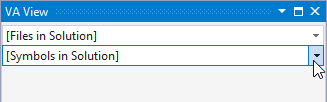
  1. Symbols in Solution drop-down in the VA View, which is often visible when editing
  2. Find Symbol dialog that is opened on demand, and is more powerful than the drop-down
You can use the keyboard or mouse to navigate both methods.
Visual Assist versus Visual Studio
Visual Studio 2017 provides Go-to-Symbol, which is similar to Find Symbol in Solution. Both implementations provide access to all symbols in a solution, but Visual Assist offers the feature in large solutions and supports advanced filtering and sorting.

Symbols in Solution Drop-down

Visual Assist provides two efficient methods to locate symbols in your solution:
The Symbol in Solution drop-down is the second component of the VA View. The interface to the drop-down is simple and fast, and sufficient if you have reasonable knowledge of the symbol you need.

If the VA View is not open, open it with VAssistX | Tools | VA View or via a shortcut assigned to VAssistX.VAView.
VA View Find symbols in solution
Put focus in the Symbols in Solution drop-down, and type one or more strings to filter the list of all symbols in your solution to include only those containing the strings. Filtering in the drop-down is always case insensitive.
Filter in Find symbols in solution
Hover over entries in the drop-down to see definitions and file locations.
Hover in find symbols in solution.
Navigate the drop-down with the keyboard or mouse.

Select a symbol using Enter, or Click, to jump to its definition.

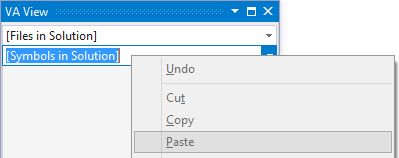
Copy a symbol from your source and paste (Ctrl+V) it into the drop-down to quickly find symbols whose names contain the content of your clipboard.
Dropdown paste in find symbols in solution.
When the drop-down list is open, Copy (Ctrl+C) places the name of the element with focus in the clipboard.

Find Symbol Dialog

Open the Find Symbol dialog via default shortcut (Shift+Alt+S) or toolbar button to see the same list of symbols with their definitions.
Toolbar icon
Double-Click a symbol to jump to its implementation.
Find Symbol Dialog

Filtering in the Dialog

Type a string in the edit field of the dialog to filter the list. By default, Visual Assist selects a symbol whose name begins with the filter. If no symbol begins with the filter, Visual Assist selects the first symbol containing the filter.
Find symbol dialog filter
Type unique filters to locate symbols quickly. Type multiple strings to find symbols whose names contain all of the strings.
Find symbol dialog filter multiple
Precede a filter with a hyphen to exclude symbols (negative filtering).
Find symbol dialog filter negative
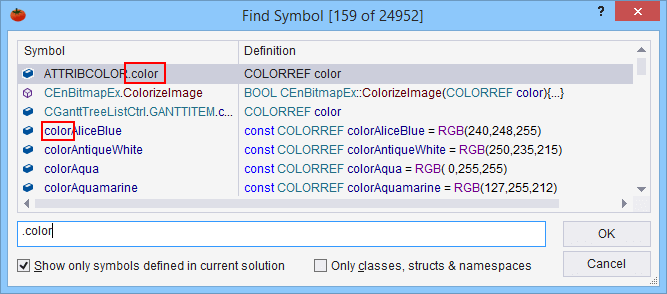
Begin a filter with a dot to find symbols that begin with the filter, or contain the dot and substring. A filter that ends with a dot matches ends of symbols. For example “.color” finds symbols that begin with “color” or contain “.color”.
Filter begins with

Scope of Search in the Dialog

Toggle the checkbox in the dialog (Alt+S) to restrict the list to those symbols defined in the current solution. If unchecked, the list includes system symbols.
Find symbol dialog current solution
Select “Only classes, struct & namespaces” (Alt+C) to restrict content types and improve responsiveness of the dialog in very large projects.
Find symbol dialog classes

Context Menu in the Dialog

Right-Click a symbol in the Find Symbol dialog to expose a context menu with several commands and advanced options.

Select “Find References” (Ctrl+F) to launch Find References integral to Visual Assist for the selected symbol.
Find symbol dialog find refs
Disable Tooltips to prevent the opening of hovering tooltips that identify file, surrounding code, and directory of symbol definition. (Tooltips will still open to identify values in partially hidden cells.)
Hovering tooltips
Enable “File columns” to show columns containing files and directories. These columns are especially useful if your solution has numerous like-named symbols defined in different locations. Display of the columns does not affect sorting or filtering within the dialog. When the columns are shown, consider disabling the hovering tooltips that contain identical information.
Enable “Initialize search with editor selection” to make the Find Symbol dialog open with selected text as the current filter. Press Undo (Ctrl-Z) to restore the previous filter(s). If there is no selection, the File Symbol dialog will open with the previous filter.

Enable “Match case if search string contains any uppercase letter” to restrict searches to symbols that match the case of a filter string if the string contains any uppercase letters. Without the setting enabled, “foo” matches “foo” and “Foo”. With the setting enabled, “foo” matches “foo” and “Foo” but “Foo” matches only “Foo”. If you need to find only “foo” with the setting enabled, search for “foo -F”; the negative filter will eliminate “Foo”.

Commands in the context menu are not available in the Symbols in Solution drop-down.

Scrolling in the Dialog

Standard scrolling techniques are available in the Find Symbol in Solution dialog when focus is in the list.

Although non-standard UI, when focus is in the filter edit control, Home and End scroll the list if no filter is present. Once you start typing a filter, the Home and End keys move the text caret in the filter edit control, whereas the Up, Down, PgUp, PgDn, Ctrl-Home, and Ctrl-End continue to scroll the list.

Sorting in the Dialog

Symbols are always sorted alphabetically by name. Clicking column headers does not change the sort order

Symbols Included in the Drop-down and Dialog

Visual Assist includes in the drop-down and dialog all symbols likely the target of a search, and excludes inconsequential symbols. Symbols included vary by type, language, and location.
Symbol Type Located in C# file Located in C/C++ header file Located in C/C++ source file
Global and namespace symbols (variables, functions, classes, class members, enum names and their items, etc.) Yes Yes Yes
#defines Yes Yes No
typedefs N/A Yes No
Local variables No No No
Overloaded methods and symbols defined more than once, particularly within #define directives in C/C++, correctly appear multiple times in the drop-down and dialog.

Directory-Based Parsing

If you use directory-based parsing a file need not belong to a solution to have its symbols exposed to Find Symbol in Solution.
Directory-Based parsing

Registry Settings

Value Name Meaning
ParseLocalTypesForGotoNav Exclude locally defined classes and typedefs from FSIS dialog

List methods in file (Alt+M)

Navigate the current file from a simple drop-down of classes and methods in it. Filter the list using substrings.

List methods in file - Visual assist features

List Methods in File

The Context field of Visual Assist typically shows current context as you edit, but can use the same field to display a list of classes and methods declared or implemented in the current file. (The Context field is the leftmost component of the VA Navigation Bar.)

List contents are updated as you edit.

Use the default shortcut (Alt+M), click the Down-Arrow at the right of the field, or click within the field and then press Down-Arrow, to open the list.
Methods open arrow
Select an entry to jump to its respective location.

Press ESC or click outside the list to clear it.

Filter List Contents

After the list is open, type within the Context Field to filter the list.
Methods open arrow
Type multiple words to extend filtering.
Method filter two words
Use negative filtering to exclude entries.
List of methods negative filtering
Use dot filtering to match beginnings and ends of entries.
List methods filter dot
Use commas to search for entries that match any one of multiple filters.
Multiple filters

Control List Contents

The list of “methods” can include:
  • classes
  • methods
  • methods defined by expansion of C/C++ macros
  • member variables
  • structs
  • enumerations
  • defines
  • events
  • properties
  • regions
You can control contents of the list, and control how certain items are displayed, by opening the context menu within the list.
List methods members menu
Open the context menu within the list, not within the Context Field from which the list emanates. Use Right-Click, not Shift+F10, because focus is still in the Context Field.

If you enable the option to display method parameters, use multi-word filtering to match method and parameter names.
Method filter with parameters

Namespaces

Use the context menu to display or hide namespace scopes and regions.
Reduce display of namespace scopes
The following is a list with namespaces.
List with namespaces
The same list can be generated without namespaces.
Same list without namespaces

Location and Sort Order

By default, the list of methods is located at the top of your source window and is sorted by occurrence in the file. You can change the location of the entire VA Navigation Bar, and change the sort order of the list of methods, in the options dialog of Visual Assist.
Location and Sort Order
Ability to change sort order is also available in the context menu of the list.
Sort alphabetically List Methods in File

Icons

Icons in the list are common to the IDE.

Registry Settings

Value Name Meaning
SelectRecentItemsInNavigationDialogs Force navigation features to select first alphabetical match

Implement Virtual methods (Shift + Alt + Q)

Quickly generate method stubs for methods of an interface or virtual methods of a base class in C++ or C#. This shortcut opens the Quick actions and refactoring menu which provides many context-aware options depending on where the caret is or what is highlighted.

Implement Virtual methods - Visual assist features

Implement Interface / Virtual Methods

Quickly generate method stubs for methods of an interface or virtual methods of a base class in C++ or C#. Access this feature from a refactoring menu when on the class you wish to implement. Inserted stubs contain code taken from a VA Snippet, typically code to throw an unimplemented exception and remind a developer to implement functionality.

Implement Interface / Virtual Methods descends into inherited classes, so methods from base classes of multiple depths can be implemented.

Access

Open the Quick Action and Refactoring menu (Shift+Alt+Q) from a class that is derived from a base class. Select “Implement Virtual Methods”.
Implement Virtual Methods
Select methods to implement. Methods already implemented are unavailable.
Select methods to implement
Methods are implemented using a language-dependent VA Snippet, Create from Usage.
implement virtual expanded
Check / uncheck all methods by right clicking on the method.
Check or uncheck all methods

Implementing Interfaces

If you implement methods of an interface class, all methods are implemented without an intervening dialog.
If a base class has pure virtual methods, and is therefore an interface, the dialog to select methods opens with the pure virtual methods checked, and non-pure virtual methods unchecked.

In a scenario with pure virtual methods, only the pure virtual methods are checked by default.
Virtual methods are checked by default

Multiple Inheritance

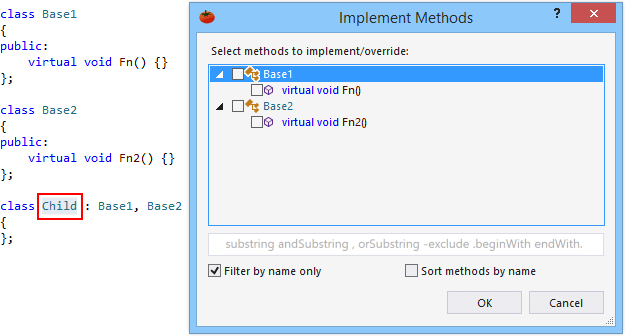
To implement methods from more than one inherited class or interface, invoke Implement Interface / Virtual Methods from the current class name, not from an individual interface or base class.
Implement virtual multiple class
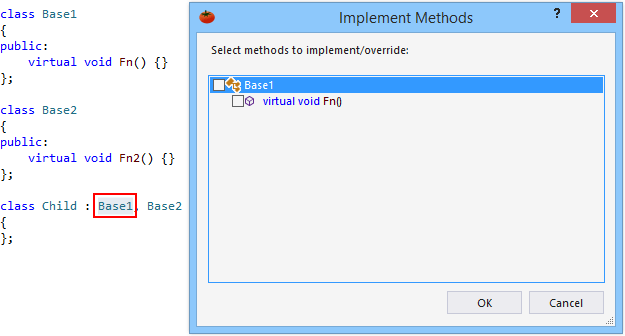
To implement methods from a single inherited class or interface, invoke Implement Interface / Virtual Methods from the name of a base class, not from the current class name.
Implement virtual multiple base

Complex Scenarios

In a mixed scenario of multiple inheritance, with abstract and concrete classes, Visual Assist lets you select from a list in which only the interface methods are selected by default.
Implement interface mixed

Filtering

If the list of methods to implement/override is long, use filtering to reduce its size.
Implement filter
Filtering does not affect the states of checked entries so you can filter repeatedly to find a disparate set of methods.

As possible in other dialogs of Visual Assist, use multiple strings, negative filtering, and dot filtering to reduce the size of the list.

If you want to search names and parameter lists, disable the option to filter by name only.
Implement filter name only

Sorting

By default, methods are sorted in the order they appear in classes. If you wish methods within each class to be sorted by name, enable the respective sort option.
Implement filter sort

Keyword to Generated C++ Methods

In C++, Code Generation provides you with an option to include the virtual and/or override keyword in methods generated by Implement Interface / Virtual Methods.
Code generation

Virtual

In C++, use the “virtual” keyword when implementing an interface or overriding virtual base methods.

Override

In C++, use the “override” keyword when implementing an interface or overriding virtual base methods.

You can append “override” to a virtual function declaration to make the compiler override a virtual method inherited from a base class. If the virtual method does not exist in the base class or has a different signature, the compiler raises an error and the compilation fails.

You can insert the “override” keyword on the Code Generation settings in the Options dialog for Visual Assist.

Virtual and Override

In C++, you can also select “virtual and override” to use both keywords.

Default Method Body

Edit the language-dependent VA Snippet for Create From Usage Method Body to change the default method body created by Implement Interface / Virtual Methods.

The following is the default VA Snippet for Create From Usage Method Body in C++.
Implement virtual default snippet

Open corresponding file (Alt + O)

This is usually used to quickly switch between header and implementation files. VA’s version gives you a menu when more than one destination is possible.

Open corresponding file - Visual assist features

Navigate Back and Forward

Move about code with Navigate Back and Navigate Forward, much like you move about with an Internet browser. Navigate to previously visited locations in your code, and forward again to your most recent location.
Visual Assist versus Visual Studio
Microsoft Visual Studio has built-in navigation commands similar to those in Visual Assist, with the primary difference being in the waypoints recorded. Visual Assist records fewer waypoints so navigation among them is more efficient. For example, Visual Assist ignores waypoints associated with simple movement of the text caret.

Access

By default, Alt+Left navigates back, and if you remove the Alt+Right shortcut for Edit.CompleteWord in Microsoft Visual Studio, Alt+Right navigates forward. (The “bindings” are active if no other commands are bound to the shortcuts.)

Alternate Shortcuts

Assign alternate shortcuts to VAssistX.NavigateBack and VAssistX.NavigateForward, including those assigned to the built-in versions of Navigate Backward (Ctrl+-) and Navigate Forward (Shift+Ctrl+-).
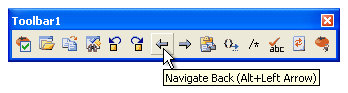
Navigate toolbar button

Toolbars

Visual Studio
Visual Assist does not include back and forward buttons in its default toolbar, assuming users prefer keyboard access. If you prefer buttons, add them using the customize feature of the IDE.
Toolbar customize
Visual C++ 6.0
Microsoft Visual C++ 6.0 has no built-in navigation commands, so the commands integral to Visual Assist appear in the default toolbar.
Toolbar C++ 6.0

Waypoints

The following table identifies the waypoints recorded by Visual Assist and Microsoft Visual Studio.
Saved Waypoint Visual Assist all IDEs Visual Studio 2010 and newer Visual Studio 2008 and older
Source edits
Caret navigation
File switch via Solution Explorer
File switch via click on file tab
IDE Go to definition/declaration
VA GoTo Implementation and GoTo Related
IDE Find References Upon double click/F8
VA Find References
Find in Files Upon double click/F8
Restoring column position

Registry Settings

Value Name Meaning
BrowserAppCommands Configure mouse back and forward buttons

If you want to discuss Visual Assist further and how it can help your company Contact Us.

Scroll to Top