
Write better quality code, in a fraction of the time
Boosts productivity and code quality for C, C#, and C++ developers in Visual Studio with smart navigation, refactoring, auto-completion, and code analysis.
Features in Visual Assist
Visual Assist has a wealth of features to enhance developer productivity. Improve virtually every Microsoft IDE you have with the multitude of features that comprise Visual Assist.
Navigation
Move about your code with newfound ease—to any file, method, symbol, or reference in your projects and solutions. Get anywhere from anywhere.
Refactoring
Reduce the complexity of your code, improve readability, and make it extensible without changing external behavior. Refactor legacy code, code you inherit, or the first version of your own work.
Code Generation
Generate code faster than you think possible, even if you use just a handful of the features in Visual Assist. As you become a proficient user, write and update code even faster.
Code Assistance
Move about your code with newfound ease—to any file, method, symbol, or reference in your projects and solutions. Get anywhere from anywhere.
Code Understanding
Make sense of complex code, or code you haven't touched in a long time, with an assortment of tool windows, browsers, and fields that provide information where and when you need it.
Code Correction
Watch Visual Assist correct mistakes as you make them, especially errors in symbol case and pointer notation. Type entirely in lowercase and watch VA correct the case of all your symbols. Save the shift key for your definitions.
Code Inspection
Inspect your code for specific quality issues and modernize your older code. The Code Inspection feature of Visual Assist, based on LLVM/Clang, diagnoses and fixes typical programming errors, like style violations, interface misuse, and bugs that can be deduced via static analysis.
Code Snippets
Expand frequently typed segments of code with a more powerful version of the like-named feature in the IDE. Include symbols from the current context, prompt for user input, and edit snippets in a custom editor.
Debug Assistance
Use the VA Memory View and the VA Step Filter included with Visual Assist to shorten the time required to debug native C/C++.
Tool Windows
View code from 30,000 feet, and rearrange code so it's easier to understand and maintain. Tool windows in Visual Assist supply entirely new functionality to the IDE, and bring together oft-used built-in functionality to more efficient tool windows.
Source Links
Connect comment substrings to external applications and websites, such as bug trackers, case managers, documentation, and source code control systems.
Configuration
Adjust the multitude of features in Visual Assist to suit your programming environment and habits. Find your favorite features, and make them hum for maximum productivity.
All-in-one productivity toolkit
Work faster with high performance navigations
With sensibly designed UI, VA lets you instantly explore and navigate your code, minimizing actions needed so you can focus on your work—even with millions lines of code.
Fills the gaps for special C-like languages and wrappers
Where Visual Studio lacks, VA adds much needed support and tooling. This makes core navigations, syntax highlighting, and code completion for shader files, Unreal Engine APIs and macros, and more.
Better quality code with minimal effort
VA is equipped with advanced refactoring, debugging, and code analysis that is highly context aware.
Tailored support for Unreal and Unity game development
Quickly set up gaming projects with extremely fast initial parsing. VA’s code operations, navigations, and analysis perform just as fast regardless of solution size. It even adds support for UE-specific macros and shader files.
Read what our users say about us
Learn more about Visual Assist
TOP 10 Visual Assist features that improve productivity
#1 Open any file (Shift+Alt+O)
Find and open any file in your solution using a simple dialog and a few search tokens.
The example finds filenames with “player” and “swim”, without “multi”, and opens the selected file at line 1024.

#2 Find any symbol (Shift+Alt+S)
In a dialog that supports similar filtering, find any symbol in your solution.
To become a power user, explore the context menu in this and every dialog of Visual Assist.

#3 Go to implementation (Alt+G)
Despite comparable functionality in Visual Studio, many users rely on Visual Assist to find more definitions and declarations than built-in Intellisense.
Alt+G opens a menu when multiple targets are available.

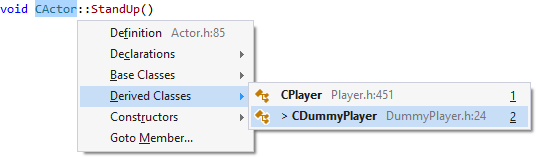
#4 Go to anything related (Shift+Alt+G)
The big brother of Alt+G can take you just about anywhere related to the current symbol.
Instead of chasing an implementation with successive presses of Alt+G, use Shift+Alt+G to jump into a hierarchy.
From any reference to a class, jump directly to a base or derived class.

#5 Open corresponding file (Alt+O)
Open the file that is most related to the active document.
In C/C++, Alt+O typically opens a corresponding header or source file. Alt+O opens a menu when more than one destination is possible.
Follow Alt+O with Alt+Left-Arrow to return to your original destination.

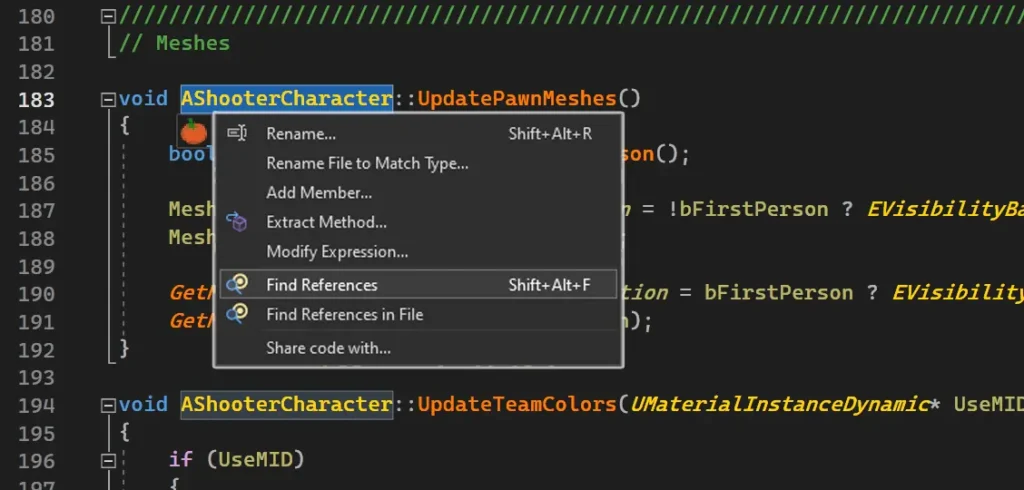
#6 Find references (Shift+Alt+F)
Although built-in Find References has improved over the years, the version in Visual Assist is still faster, more powerful, and often more complete.
Clone results windows, via icon or context menu, so you can run additional finds without overwriting your initial results.

#7 Quick actions and refactoring menu (Shift+Alt+Q)
Access the features of Visual Assist applicable to the current context with Shift+Alt+Q. The content of the menu varies greatly. Experiment from symbols of different types, expressions, lines, and whitespace.
Adjust spacing and format of the VA Snippets used by the refactoring and code-generation commands in the menu, e.g. Create from Usage and Implement Virtual Methods.
Open the snippet editor via VAssistX | Tools | Edit VA Snippets, then set type to Refactoring.
Disable the floating buttons that open the same menu as Shift+Alt+Q.


#8 List methods in file (Alt+M)
Navigate the current file from a simple drop-down of classes and methods in it. Filter the list using substrings.
Adjust content of the list via the context menu for the tiny down-arrow.


#9 Rename (Shift+Alt+R)
Although built-in Rename is occasionally sufficient, the version in Visual Assist is faster, more powerful, and often more complete.
Rename the definition and declaration of a symbol, all references to it, and optionally, occurrences in comments and strings. A preview of all targets to be renamed is always shown so you are confident the rename does what you expect.

#10 Use VA Hashtags
Add hashtags to comments and navigate among them via tool window (Shift+Alt+H) or go-to command (Shift+Alt+G).
VA Hashtags are effectively bookmarks and tasks that move with your code. Create new hashtags or prepend # to existing keywords, e.g. #John and #TODO. After you navigate using simple VA Hashtags, learn about their advanced functionality.

Frequently Asked Questions
Visual Assist and the built in Intellisense tooling share a few common features. Where we share features, VA frequently operate much faster and do a better job of giving you the correct results (e.g. finding more references that Visual Studio would miss).
Also, the Visual Studio UI can arguably complicate some dialog boxes for simple tasks.
An example is the Visual Studio unified search, which operates like the search bar in the operating system wherein everything is shown. In contrast, VA uses different search dialogs for each type of search, each with features specific to that kind of search and without displaying results you aren’t interested in.
Visual Assist (VA) is a coding productivity plugin for C++ and C# developers who work in Visual Studio. Visual Assist has its own code parser, separate from the built in Intellisense parser. This provides all of the features one would expect from a modern IDE and many more.
These features include tools for Navigation, Refactoring, Debugging Assistance and Automatic Code Modernization with Code Inspections. VA also offer special support and tooling for Unreal Engine, Unity, Graphics Card “Shaders” and CUDA.
As with any tool, how useful it is depends on how much you intend to use it. VA enhances productivity by improving Visual Studio’s default features or by adding new ones absent from the IDE.
Some users focus on a few features, while some take the time to try out all the features. There are many options available to you with all of them aimed at making you code faster, easier, and making the experience less frustrating.
Developers using Microsoft’s Visual Studio to develop and code using C, C# and C++ will benefit from using VA.
There has been a focus on C++ game development (Unreal Engine) wherein the added support and tooling is most needed. Recent updates have also added support and tooling for Unity Engine, Graphics Card “Shaders” and CUDA development.
